
Salesforce to Teams on AWS: Building an Escalation Agent with Amazon Bedrock AgentCore

Vikram Thakur
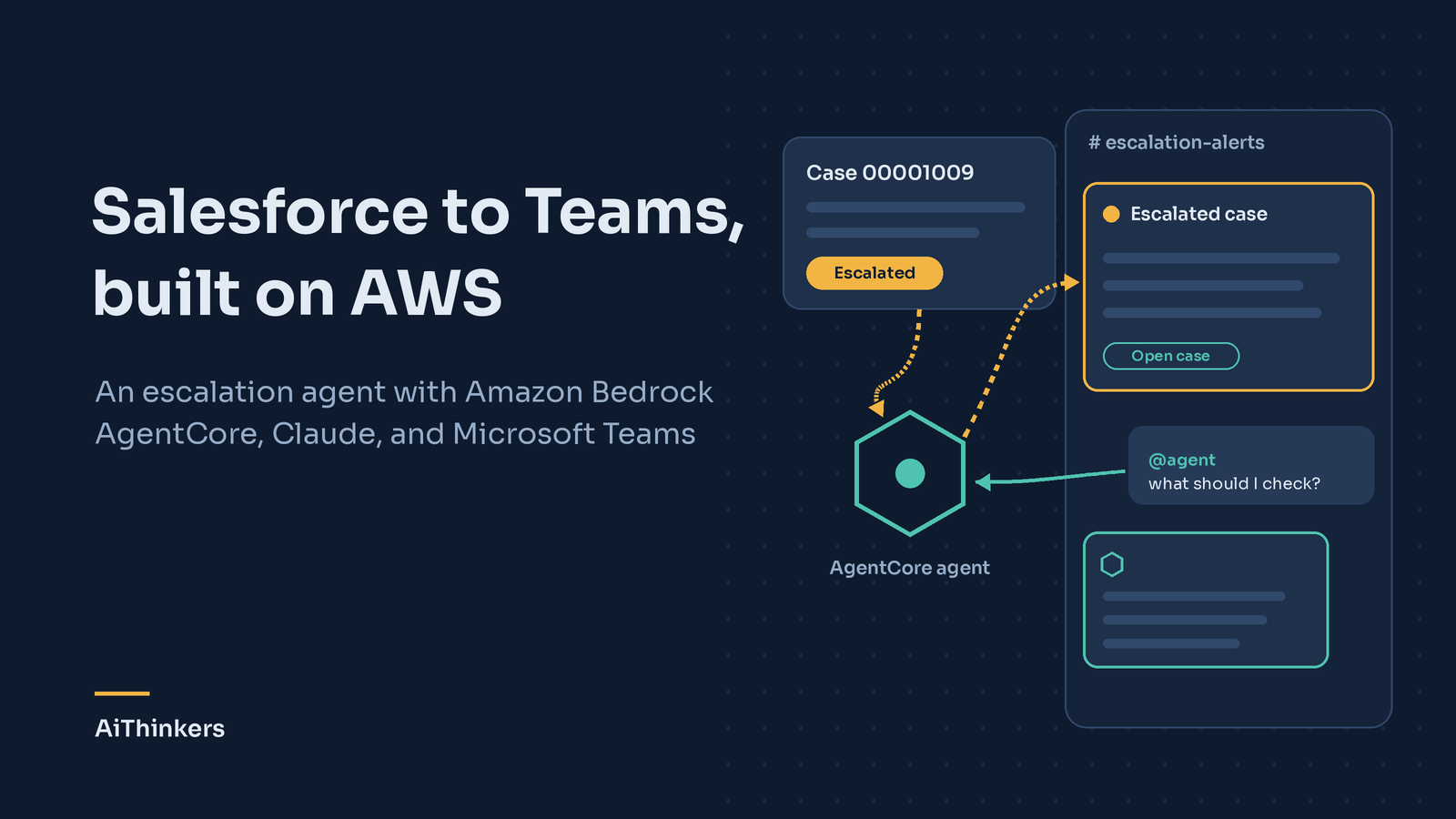
In our last post we built an escalation agent with Copilot Studio and Power Automate: when a purchase-order case in Salesforce is escalated, an alert lands in Microsoft Teams. It worked, and it took an afternoon.
This time we built the same agent on AWS, using Amazon Bedrock AgentCore and Claude. The goal wasn't to replace the Microsoft version. We wanted to see what you gain when the agent is something you design and control yourself, and what it costs to get there.
What we wanted the agent to do
Two things, which we kept deliberately separate:
- Push: when a case becomes Escalated, post an alert in the team's channel within about a minute, once per escalation.
- Pull: let anyone in the channel ask the agent follow-up questions, such as "what's escalated today?" or "what should I check on this one?", and answer from live Salesforce data.
Alerts need to be boring and reliable. Conversations benefit from a model that can reason. Separating the two paths means each can be built the way it should be.
The architecture
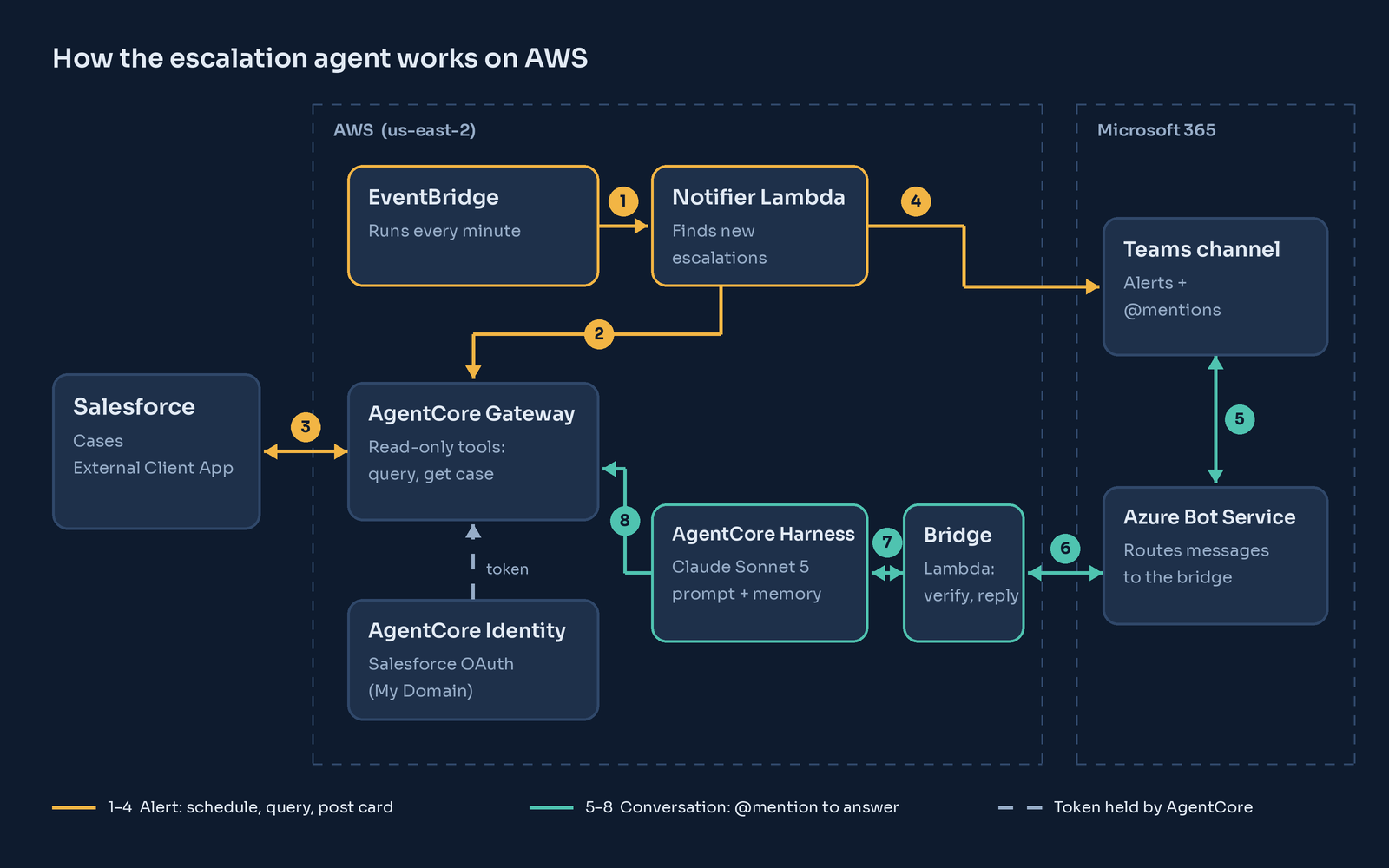
The alert path (steps 1–4).
An EventBridge schedule runs a small notifier Lambda every minute.
The notifier asks Salesforce for escalated cases through AgentCore Gateway.
It compares the result with the cases it has already alerted on.
It posts a card to Teams for anything new.
Because it tracks state, editing an already-escalated case doesn't produce a second alert.
The conversation path (steps 5–8).
A Teams @mention goes to Azure Bot Service.
Bot Service forwards it to a bridge Lambda, which verifies that the request really came from Microsoft.
The bridge passes the question to an AgentCore Harness running Claude.
The agent uses the same Gateway tools to look things up, and the answer comes back into the same thread.
Both paths share one Salesforce connection, and neither Lambda ever holds a Salesforce credential. AgentCore Identity keeps the OAuth client, and the Gateway fetches tokens as it needs them.
Step 1: Connect Salesforce the right way
Create an External Client App in Salesforce with OAuth enabled and the client credentials flow turned on, running as a dedicated read-only integration user. The agent works on behalf of a team rather than an individual, so there's no per-user sign-in to manage.
The detail that matters: Salesforce only issues client-credentials tokens from your org's My Domain (yourorg.my.salesforce.com), not the generic login endpoint. In AgentCore Identity, register the OAuth client as a custom provider using your My Domain discovery URL.
Step 2: Give the agent tools, and only the tools it needs
AgentCore Gateway turns APIs into tools an agent can call. There is a built-in Salesforce template, but we wrote our own two-endpoint OpenAPI spec instead: one operation runs a SOQL query, the other fetches a case by ID. Both are GETs.
That makes the agent read-only by construction. Even if someone asks it to close a case, and the prompt somehow failed, there's no tool that could do it.
Step 3: Build the agent with AgentCore Harness
Harness is AgentCore's managed way to run an agent without packaging code. You choose a model, write a system prompt and attach the Gateway. Our prompt does four things:
- defines the agent's narrow role (inform, don't resolve),
- fixes a response format for every case,
- tells it never to invent data it didn't get from a tool, and
- tells it to refuse any request to change records.
Harness also adds short-term memory, so follow-up questions in a thread keep their context.
Step 4: Bring it into Teams
Teams doesn't talk to AWS directly. Every Teams bot goes through Azure Bot Service, so the bridge between the two is a small Lambda (about 200 lines of Python) that:
- validates the Bot Framework token on every request,
- acknowledges immediately so Teams never times out,
- strips the @mention text, and
- gives each Teams conversation its own agent session.
Register an Azure Bot (the free tier covers Teams), point its messaging endpoint at the Lambda, and upload a Teams app manifest that references the bot.
Step 5: Add proactive alerts
The notifier Lambda reuses everything above. It calls the Gateway directly with IAM credentials, formats a card, and posts it as the same bot. When the bot is first used in a channel, the bridge records that channel, so the notifier knows where to post.
On orgs that support it, Salesforce Event Relay can push changes to EventBridge in real time instead of polling. The rest of the design stays the same.
What the team sees
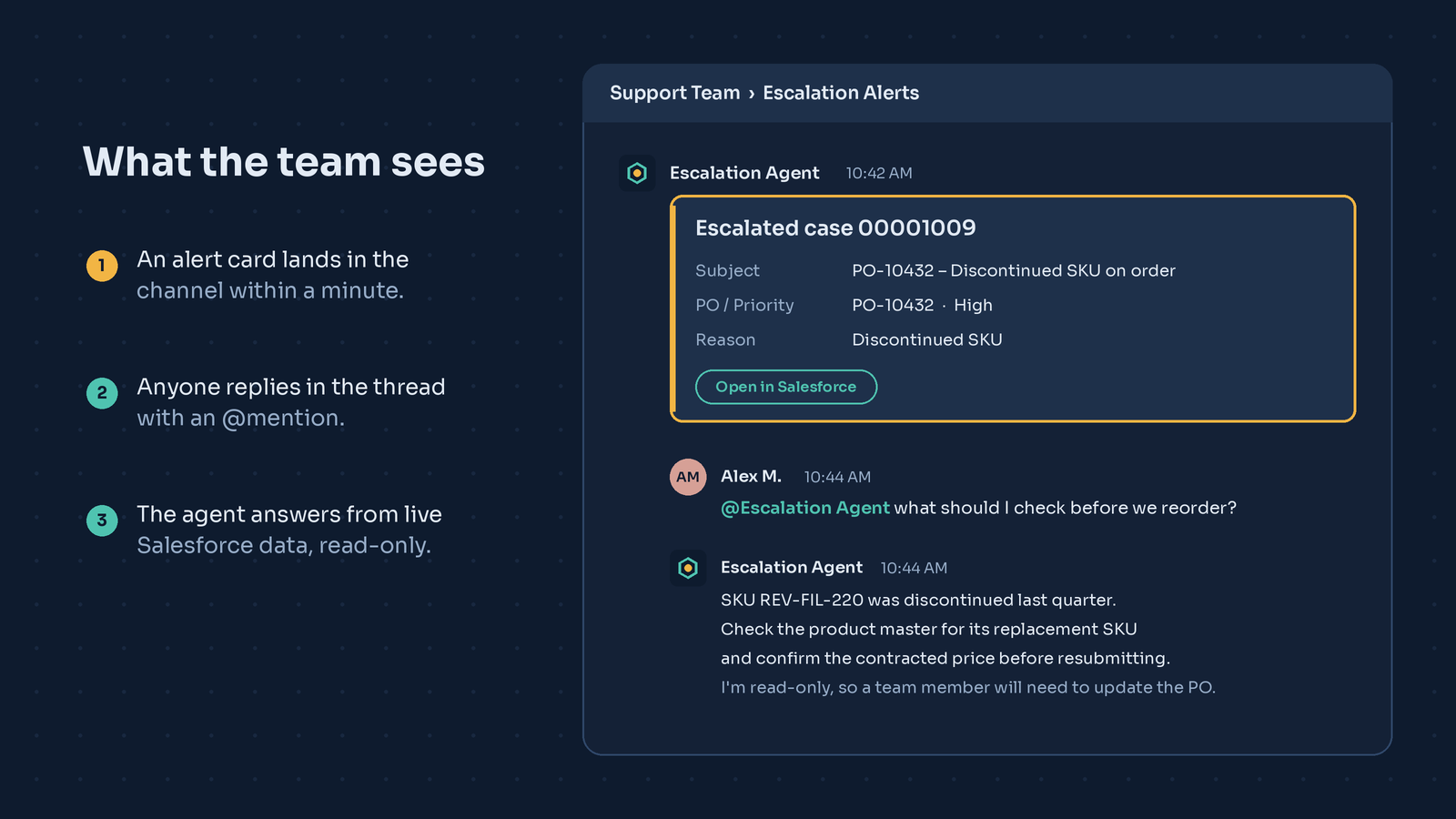
The alert arrives, someone asks a question in the thread, and the agent answers from live data. Nobody has to open a dashboard or copy details from one system to another.
What we learned the hard way
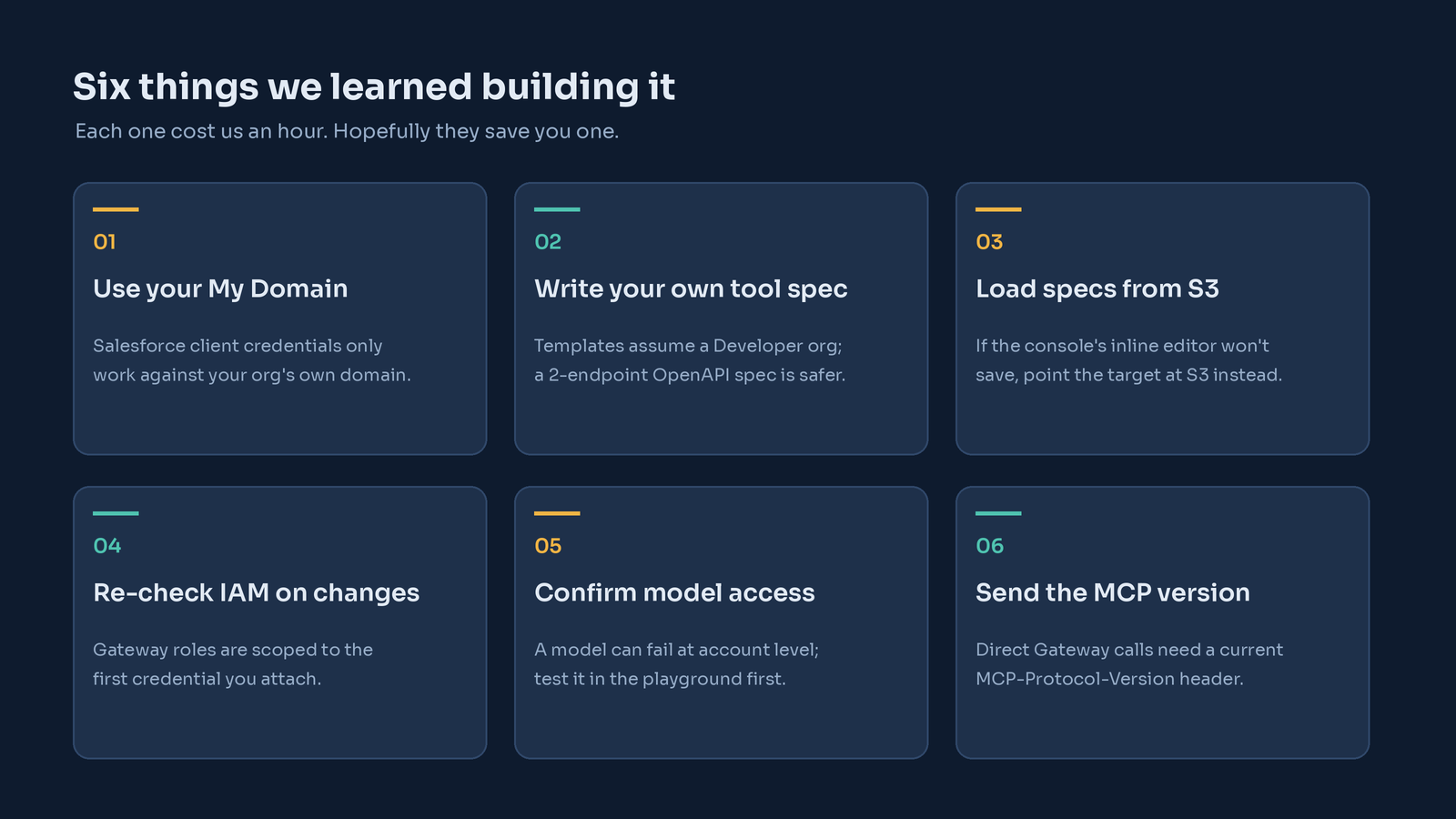
None of these are obvious from the documentation, and each one stopped us for a while:
- Use your My Domain for tokens. The generic Salesforce login endpoint rejects the client credentials flow with an unhelpful 400 error.
- Write your own tool spec. The Salesforce template assumes Developer Edition hostnames. Two endpoints you control are easier to reason about, and much safer.
- If the console won't save your schema, use S3. The inline editor sometimes submitted its placeholder instead of our spec. Uploading the file to S3 and pointing the target at it worked first time.
- Re-check IAM when you change credentials. The Gateway's service role was scoped to the first OAuth client we attached. Switching providers meant adding a permission.
- Confirm model access before you debug anything else. A model can be blocked at the account level, for example by a Marketplace subscription issue. A quick playground test tells you right away.
- Send the MCP protocol version. When calling the Gateway directly from your own code, include an MCP-Protocol-Version header, or requests are rejected.
Copilot Studio or AgentCore?
Both are good answers to different questions.
Copilot Studio gets a working agent into Teams in hours, stays inside Microsoft 365 governance, and suits teams that want low-code. Choose it when speed and simplicity matter most.
AgentCore takes longer to set up, but you control the model, the tools, the prompt and the alert logic. It's also where you'd go when the rest of your stack already runs on AWS, or when you need behaviour the low-code tools don't offer, like once-per-escalation alerts posted by the agent itself.
What's next
Next we'll add real-time triggers with Salesforce Event Relay, add CloudWatch alarms and a dead-letter queue, and, carefully and with human approval, let the agent take its first small actions, such as adding a note to a case. The pattern also generalizes well beyond purchase orders: any system that produces a status change a human needs to act on can use it.